Configurable Data Group
A "Configurable Data Group" (CfgDg or CfgMB) provides a flexible way to create custom data groups on a per-device basis by using the remote device editor. You can use such data groups in one-off scenarios like testing or, if the data group definition is more broadly useful, paste its XML into the applicable device template file. You may add and configure up to 999 of these data groups per remote device.
Best practice recommends first writing a thorough device template file to accommodate as many of your field devices as possible. Then use a remote device editor to add one or more "Configurable Data Group(s)" on an ad hoc basis to suit unique situations.
You might find the CygNet DDS Data Group Copy Utility useful for copying a unique "Configurable Data Group" to other remote devices. You might find the Device Copy utility useful for copying remote devices that use the "Configurable Data Group(s)."
See the following subsections for more information:
Define a Configurable Data Group
Perform the following steps to define a configurable data group.
To Define a Configurable Data Group
- Using CygNet Explorer, right-click in your DDS pane, click Remote Devices, and open the remote device to which you want to add a "Configurable Data Group".
- In the remote device Properties editor, click the Data Group page, click Add, and double-click Configurable Data Group.
- Define general data group properties, then click Configure. (Ord# is only used as a data group identifier; it has no special uses beyond identifying an instance of a "Configurable Data Group".)
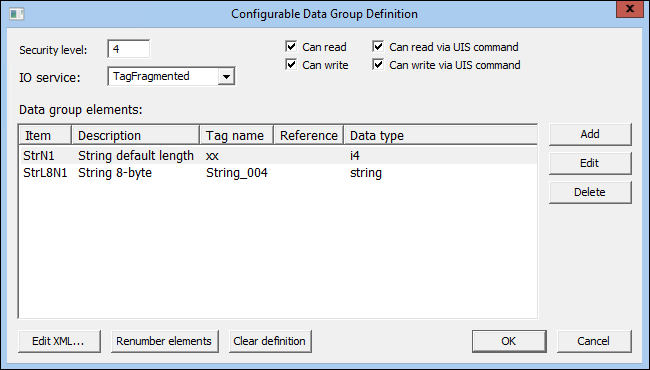
- In the Configurable Data Group Definition dialog box that opens, specify "Configurable Data Group" settings. See Configurable Data Group Definition Properties.
- Click Add to add a new element to your "Configurable Data Group". Add as many data group elements as your "Configurable Data Group" requires.
- Highlight the new element and click Edit to define the new element. Your finished "Configurable Data Group" might look something like this:
|
Allen Bradley CIP Configurable Data Group Definition |
- If you define the data group and want to add its XML to a device template file, click Edit XML and paste the data group XML into the applicable device template file.
- If you've deleted elements in the process of creating the data group and want to reorder the existing elements in sequential order, click Renumber elements. (If you've given an element a custom name, clicking Renumber elements will overwrite the name.)
- When you are finished, click OK and click OK again in the Data Group Properties dialog box.
Configurable Data Group Definition Properties
The following table lists and describes the properties of the Configurable Data Group Definition dialog box.
| Item | Description |
|---|---|
|
Security level |
See secLev. |
|
IO service |
See IOService. |
|
Can read |
See canRecv. Display of this option is configured in the device template file. |
|
Can read via UIS command |
See uccRecv. Display of this option is configured in the device template file. |
|
Can write |
See canSend. Display of this option is configured in the device template file. |
|
Can write via UIS command |
See uccSend. Display of this option is configured in the device template file. |
| Data group elements | |
|
Item |
The name of an element. This can be modified in the XML file. See DataGroupElement. |
|
Description |
See desc. |
|
Tag name |
See tagname. |
|
Reference |
See ref. |
|
Data type |
See type. |
|
Add |
Click Add to add a new element. If another element is currently highlighted, the added element is a copy of the highlighted element. See DataGroupElement. |
|
Edit |
Click to edit the selected element. |
|
Delete |
Click to delete a selected element. |
|
Edit XML |
Click to open your "Configurable Data Group Definition" in an XML editor. Make changes if required. This is useful for fine-tuning your configurable data group definition or for copying and pasting the data group definition into a device template file. |
|
Renumber elements |
Click to reset the numbering of your elements to a simple consecutive format. This is useful if you've deleted elements and want the data group elements to be more tightly ordered. Clicking Renumber elements overwrites data group element IDs whose names you have changed in the configurable data group's XML definition. |
|
Clear definition |
Click to clear the entire data group definition. |
Define a Configurable Data Group Element
Perform the following steps to define a configurable data group element.
To Define a Configurable Data Group Element
- At the Configurable Data Group Definition dialog box, click Add. Add as many data group elements as your "Configurable Data Group" requires.
- Highlight the data group element you want to define and click Edit. A dialog box like the following appears:
|
Allen Bradley CIP Data Group Element Definition |
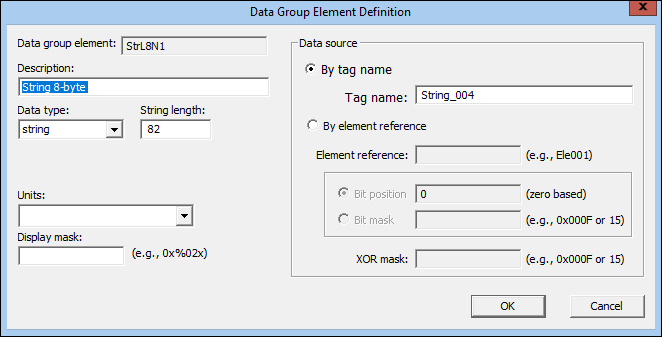
- Specify the Data type and other "Configurable Data Group" data group element settings. See Data Group Element Definition Properties.
- When you are finished, click OK. Repeat steps 1 - 3 until you've added all required data group elements.
- When you are finished, click OK.
- If you define the data group and want to add its XML to a device template file, click Edit XML and paste the data group XML into the applicable device template file.
- If you've deleted elements in the process of creating the data group and want to reorder the existing elements in sequential order, click Renumber elements. (If you've given an element a custom name, clicking Renumber Elements will overwrite the name.)
- When you are finished, click OK and click OK again in the Data Group Properties dialog box.
Data Group Element Definition Properties
The following table lists and describes the properties of the Data Group Element Definition dialog box.
| Item | Description |
|---|---|
|
Data group element |
Displays the selected data group element. |
|
Description |
See desc. |
|
Data type |
See type. |
|
String length |
If the Data type is string, String length determines the maximum length for read-only and writable strings (as determined by Can read and Can write settings on the parent Configurable Data Group Definition dialog box). If the data type is a string, the string length is defined by the len attribute. If the len attribute is missing, the length is assumed to be 82. The maximum allowed length for read-only strings is 472. For writeable strings, the maximum allowed length is 470 minus the length of the tagname attribute expressed as an even number of bytes. If the result is not divisible by 4, reduce it until it is. For example, if the tagname is 11 bytes long, the maximum string length is 470 – 12 = 458 (11 bytes expressed as an even number is 12). 458 is not divisible by 4, so reduce it to 456 (the first number lower than 458 that is divisible by 4). The string length is always validated, but the maximum value allowed depends on the IO Service selected. A warning will appear if a number greater that the maximum allowable string is entered in the Data Group Element Definition dialog box. |
|
Units |
See units. |
|
Display mask |
See dMask. |
| Data source | |
|
By Tag name |
Selecting this option enables editing of the Tag name field. |
|
Tag name |
See tagname. |
|
By Element Reference |
Selecting this option enables editing of the Element Reference field. |
|
Element Reference |
See ref. |
|
Bit position |
See bPos. |
|
Bit mask |
See bMask. |
|
XOR mask |
See bXorMask. |


